
McDonalds Menu Calorie Counts
Introduction
Have you ever wondered how many calories are in your McDonalds meals? Web scraping can provide an easy way to obtain this information. McDonalds’ website has nutrition information available for all of their main menu items. As a quick exercise, I decided to web scrape the calorie information for every menu item using Python.
Beautiful Soup is a Python library that is very helpful for web scraping. This allows you to pull in the html code and parse through it to get the information you need.
Getting Started
To begin, open the McDonalds’ website menu, I used Google Chrome, and press CMD+OPT+I (Mac). This will bring up the html code of the website for you to inspect.
After inspecting the code to see what tags you need to reference, you can get started in Python with Beautiful Soup.
Import the necessary packages:
import requests
import pandas as pd
from bs4 import BeautifulSoup
import re
Next, use requests to get the html code. Then package the content into a python usable format with Beautiful Soup.
resp = requests.get('https://www.mcdonalds.com/us/en-us/full-menu.html')
soup = BeautifulSoup(resp.content, 'html.parser')
Menu Categories
Now, when looking at the website, you will see that the menu is broken up into different categories as shown below:

In order to cycle through all of the different categories, which each have their own url, you will need to create a list with the proper url links. This is accomplished in the code below:
menu_categories = soup.findAll('a', class_ = 'category-link')
menulinks = [f"https://www.mcdonalds.com{item.attrs['href']}"
             for item in menu_categories][1:]
F-strings can be very helpful in this type of situation to get the full url. For more information on F-strings, visit the following website.

You can see in the code above that we are finding the ‘a’ tags with class "category-link" and grabbing their attribute ‘href’. This was found from the code inspection in the screenshot above.
Menu Items
Now, that you have a list of menu category urls, it is time to create some functions that will help us obtain the menu item names and calorie counts.
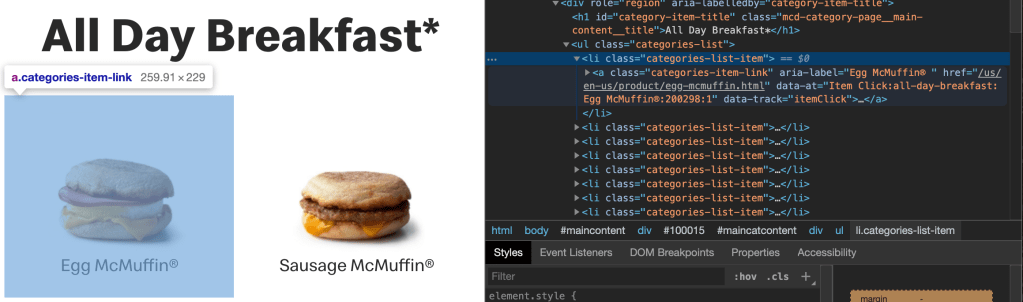
As you can see from the code inspection above, we want to find the ‘a’ tags with class "categories-item-link". You can grab the ‘href’ attribute to get the url for the individual item’s information. Storing this information in a list will allow you to cycle through each item to get the information you need. This is accomplished with the defined functions below:
def get_item_links(menulink):
    resp = requests.get(menulink)
    soup = BeautifulSoup(resp.content, 'html.parser')
    items = soup.findAll('a', class_ = "categories-item-link")
    itemlinks = [f"https://www.mcdonalds.com{item.attrs['href']}" for item in items]
    return itemlinks
Gathering Menu Item Name and Calorie Count
Once you have navigated into an individual item’s webpage, you’ll need to grab the item name and calorie count. You can see in the code inspection below that you will want to grab the ‘h1’ tag with class "heading typo-h1". Using the .get_text() method, you can pull out the name of the item, in this example the Egg McMuffin.
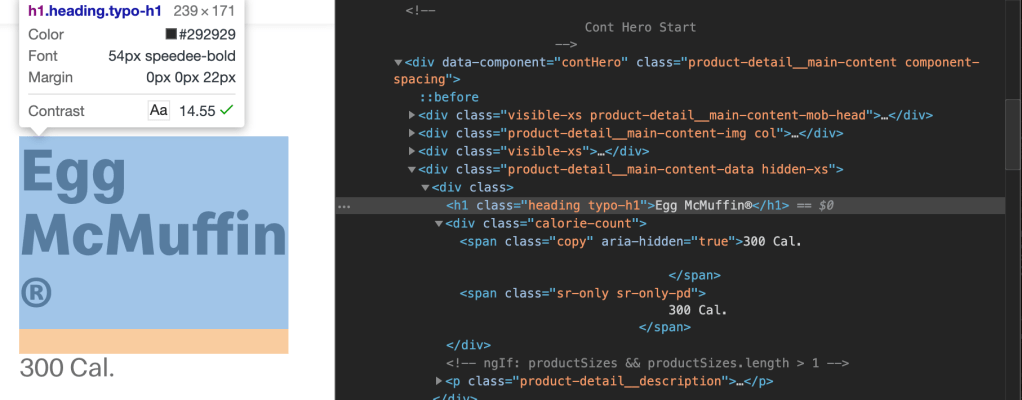
You will also see that the calorie count is shown lower down under the ‘div’ tag with class "calorie-count". Again, we can use the .get_text() method, however this will require a bit of cleaning using regular expressions (re). More information on regular expressions can be found here. These two tasks are accomplished with the following function, which returns a dictionary with the item name as the key and the calorie count as the value.
def get_item_name_and_cal(itemlink):
    resp = requests.get(itemlink)
    soup = BeautifulSoup(resp.content, 'html.parser')
    item_name = soup.find('h1', class_ = "heading typo-h1").get_text()
    calories = soup.find('div', class_ = 'calorie-count').get_text()
    calories = re.sub("\D", "", calories)
    calories = int(calories[:len(calories)//2])
    return {item_name : calories}
Combining Results into a Pandas Dataframe
Now all that is left to do is organize the data into a Pandas Dataframe. This can be accomplished with the following code that loops through the menu categories and item lists.
cals_df = pd.DataFrame()
for link in menulinks:
    itemlinks = get_item_links(link)
    cals_dict = {}
    for link in itemlinks:
        cals_dict.update(get_item_name_and_cal(link))
    cals_df = cals_df.append(pd.DataFrame.from_dict(cals_dict, orient = 'index'))
cals_df.reset_index(inplace = True)
cals_df.columns = ['Item', 'Calories']
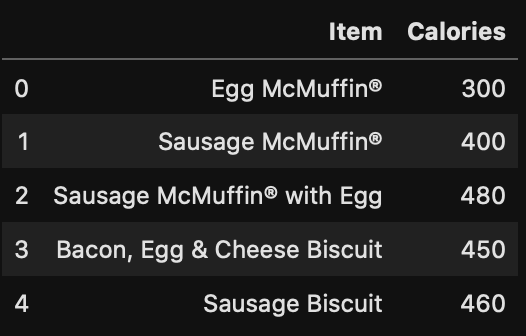
This code creates a Pandas Dataframe with 130 menu items and their calorie counts. To look at the head (top 5 rows) of the dataframe, run
cals_df.head()
which will display the following:
Summary Statistics and Exploration
You may want to see some summary statistics, for example, average calories, maximum calories, etc… This can be accomplished by running
cals_df.describe()
which displays:

What Item has the Most Calories?
The item with the most calories can be found with the following line of code:
cals_df.loc[cals_df['Calories'].idxmax()]
This shows that the Big Breakfast® with Hotcakes has the most calories for any individual menu item. Thats a hearty start to the day.

 import Data_Science as Ben